Smartly
Ad Automation
1. Unified Feed
Management (UFM)
Project Overview
Managing product data feeds for eCommerce marketing channels can be complex and time-consuming. Our objective was to create a Feed Management Interface that would make it easy to create perfectly optimized, customized & up-to-date
feeds. This would allow you to cut down on manual work, enhance your feed quality, and maximize your channel performance.
Competitors Analysis
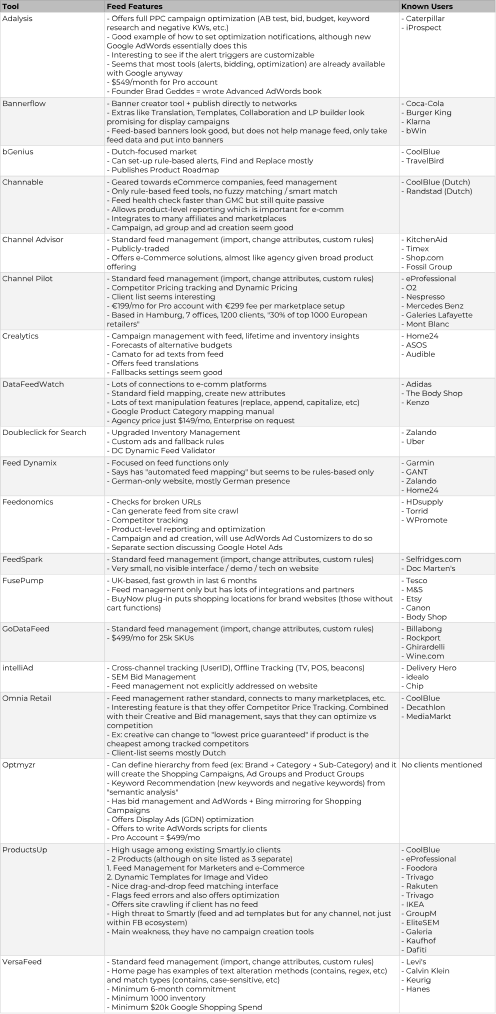
We conducted an extensive competitors analysis to assess what were the main features that other feed management platforms had which should be taken under consideration when designing our own solution.
We realized that we were uniquely positioned in the sense that we had campaign creation capabilities that competitor tools didn't possess although many 3rd party tools enabled outputs for an array of different platforms that we didn't intend to support.
In terms of actual interface analysis two notable products to be taken under consideration during the design process were ProductsUp and Channable.
ProductsUp was considered by our customers to be a bit overwhelming especially when using their field mapping interface. Channable on the other hand broke the feed configuration process into clear stages which made the whole process much easier to understand.
We realized that we were uniquely positioned in the sense that we had campaign creation capabilities that competitor tools didn't possess although many 3rd party tools enabled outputs for an array of different platforms that we didn't intend to support.
In terms of actual interface analysis two notable products to be taken under consideration during the design process were ProductsUp and Channable.
ProductsUp was considered by our customers to be a bit overwhelming especially when using their field mapping interface. Channable on the other hand broke the feed configuration process into clear stages which made the whole process much easier to understand.
User Interviews
To gather user requirements for this project we conducted 10 user interviews with our current customers.
Some of the questions we asked users were:
- How do you generate your raw feeds and how do you provide them to your current feed management solution? What's the format you're using?
- What would be the preferred way for you to provide the data for the feed management solution?
- What are all the channels you are sending feeds to?
- What are all the operations are you doing for the data? (Could you give examples of how you use exclusions, rules, category mapping, A/B testing?)
- What's the biggest value-add?
- What are you missing from the current solution?
- What's the minimum set of features you'd need to move from the current solution to Smartly (considering that the service would be included in your current Smartly fee)?
Some of the questions we asked users were:
- How do you generate your raw feeds and how do you provide them to your current feed management solution? What's the format you're using?
- What would be the preferred way for you to provide the data for the feed management solution?
- What are all the channels you are sending feeds to?
- What are all the operations are you doing for the data? (Could you give examples of how you use exclusions, rules, category mapping, A/B testing?)
- What's the biggest value-add?
- What are you missing from the current solution?
- What's the minimum set of features you'd need to move from the current solution to Smartly (considering that the service would be included in your current Smartly fee)?
User Flow Diagram
In order to visualize the input gathered we created an user flow diagram of the different stages of the feed management process. Based on it we could clearly break the process into three different key phases:
1. Data Source Configuration
During this stage the user can choose its main feed and combine it with additional feeds in order to merge items and fields into one single database. You can also tag these feeds so that some fields can be easily overriden at the output configuration stage. Automatic feed update scheduling will make sure that the data contained within your feeds is updated at regular intervals.
2. Smart Field Configuration
During this stage you can map the data source fields to smart fields or you can combine data source fields together to fill required fields for which you might not have data. After this mapping is done you can further apply rules to manipulate and enrich the data being pushed from the smart fields onwards.
3. Output Configuration
This is the stage where you'll define output feeds for the platforms supported by Smartly. Again you can remap smart fields to different output fields and you can apply additional rules for that specific platform. You can also filter specific items so that only those are pushed to the campaign creation stage.
1. Data Source Configuration
During this stage the user can choose its main feed and combine it with additional feeds in order to merge items and fields into one single database. You can also tag these feeds so that some fields can be easily overriden at the output configuration stage. Automatic feed update scheduling will make sure that the data contained within your feeds is updated at regular intervals.
2. Smart Field Configuration
During this stage you can map the data source fields to smart fields or you can combine data source fields together to fill required fields for which you might not have data. After this mapping is done you can further apply rules to manipulate and enrich the data being pushed from the smart fields onwards.
3. Output Configuration
This is the stage where you'll define output feeds for the platforms supported by Smartly. Again you can remap smart fields to different output fields and you can apply additional rules for that specific platform. You can also filter specific items so that only those are pushed to the campaign creation stage.

Designs
Based on the user research conducted I could quickly start working on designs for the different stages of the interface binding them together in the form of an interactive prototype which I could test directly with users in order to
iterate on it and make sure that all user needs were taken under consideration.
Interactive prototype available here
Interactive prototype available here
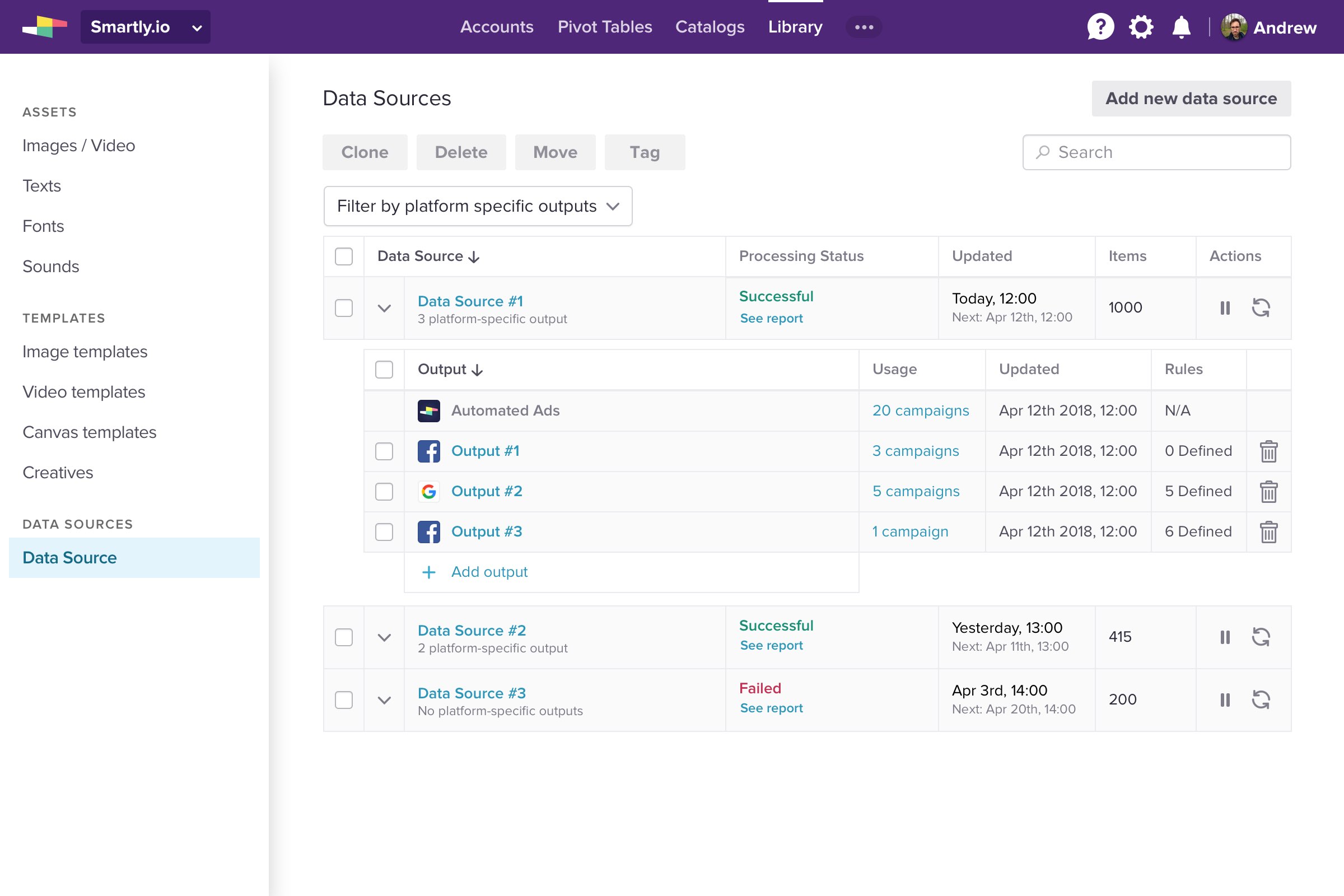
Main View
This page is the entry point for the UFM interface and it lives under the Library section of the product.
It allows users to have a general overview of all data sources created and the underlying outputs that have been configured.
You can also see to how many campaigns are using a specific output and to see if the feeds within them are updating correctly.
It allows users to have a general overview of all data sources created and the underlying outputs that have been configured.
You can also see to how many campaigns are using a specific output and to see if the feeds within them are updating correctly.
Data Source Cfg
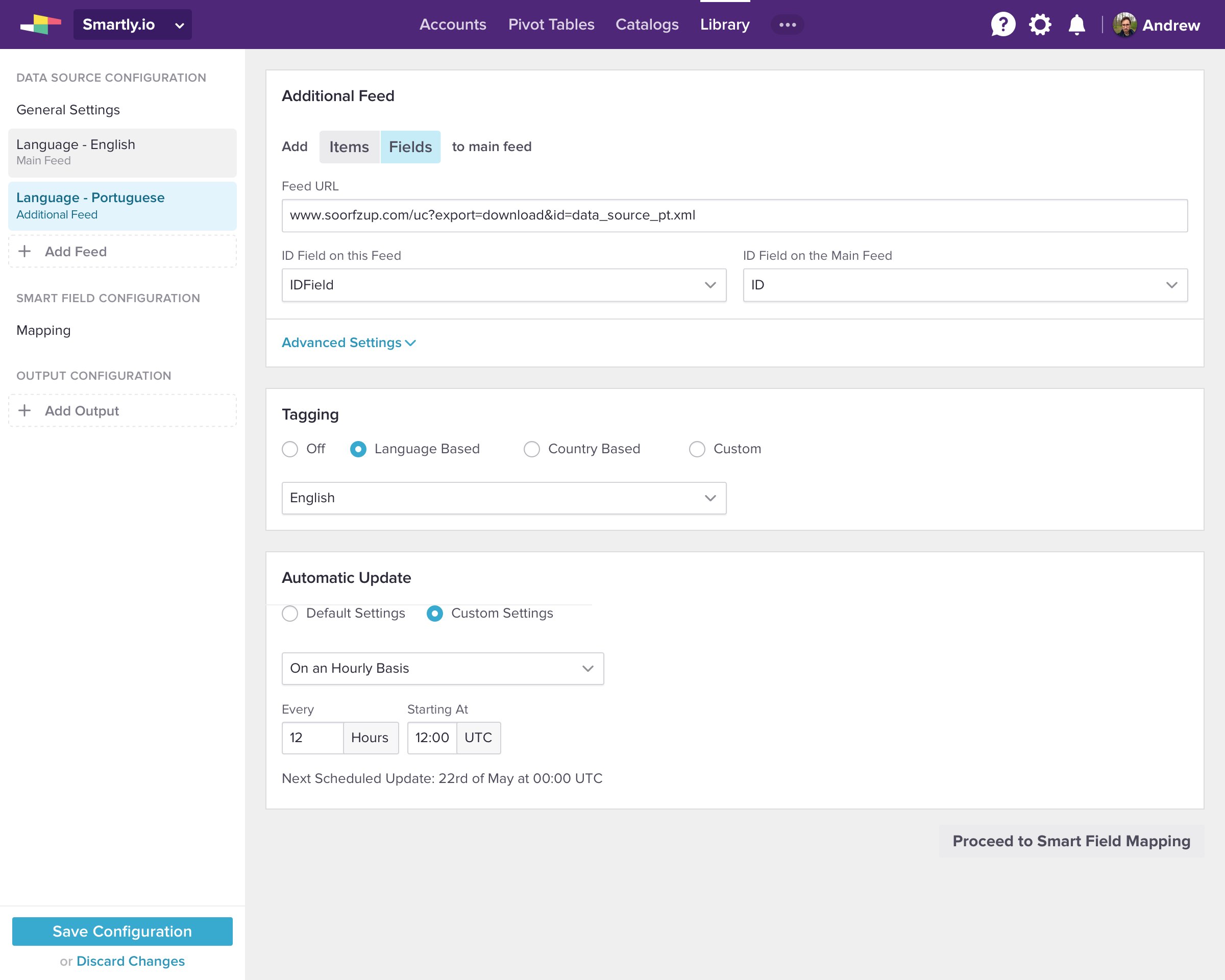
Additional Feeds Configuration
Additional Feeds Configuration
Users will be able to define a Main Feed and to combine extra items or fields from Additional Feeds.
It is possible to override the Automatic Update settings defined under the General Settings so that specific feeds update based on different time intervals.
You can also tag feeds based on languages, countries or write your own custom tags so that matching fields between different feeds can later on be overridden at the output stage.
It is possible to override the Automatic Update settings defined under the General Settings so that specific feeds update based on different time intervals.
You can also tag feeds based on languages, countries or write your own custom tags so that matching fields between different feeds can later on be overridden at the output stage.
Smart Field Cfg
Smart Field Mapping
Smart Field Mapping
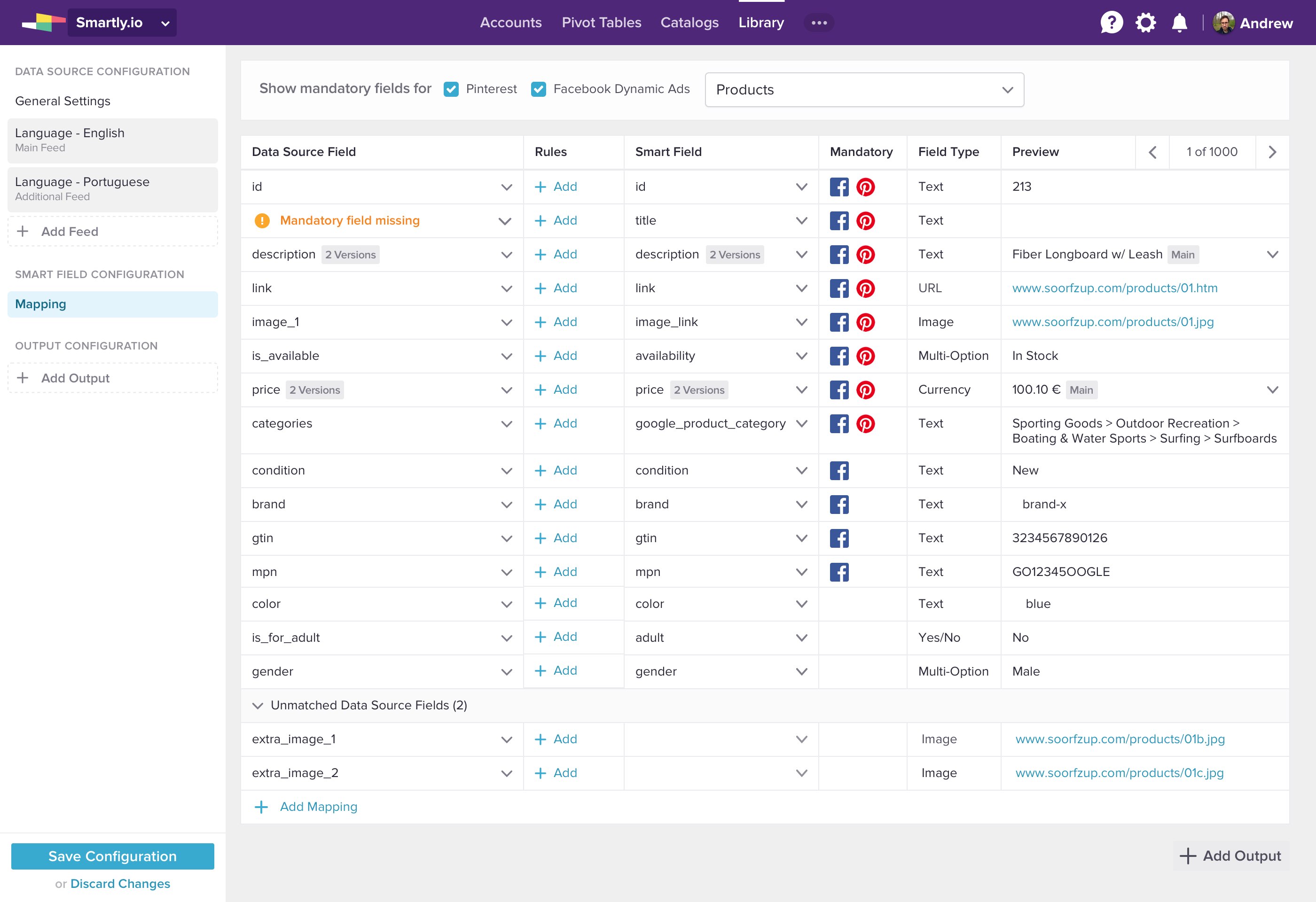
On the Smart Field Mapping screen users are able to map Data Source Fields to Smart Fields and visualize what are the mandatory fields for each platform.
In order to populate missing Data Source Fields the user may choose to combine other existing fields.
In order to populate missing Data Source Fields the user may choose to combine other existing fields.
Smart Field Cfg
Rules
Rules
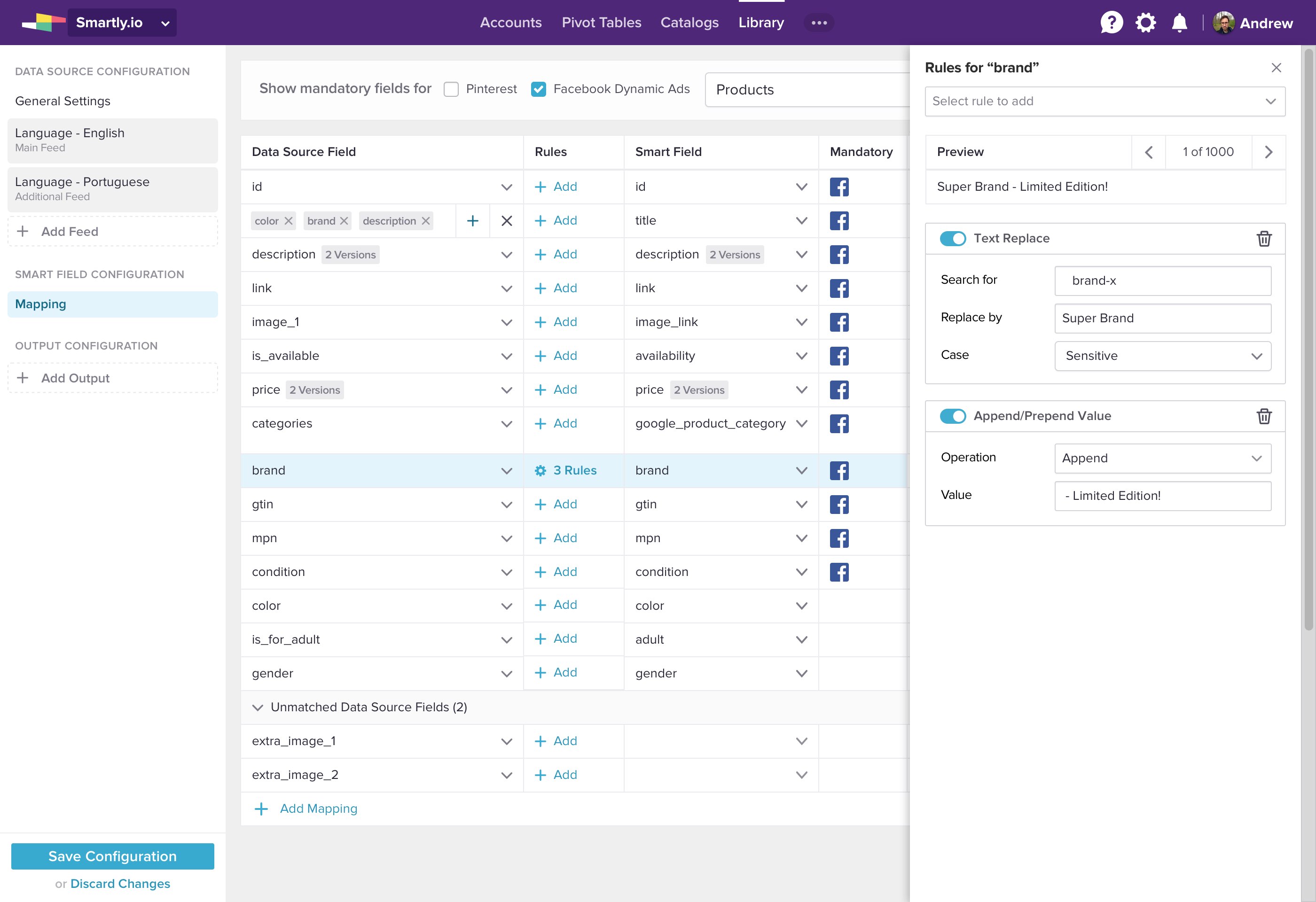
On the Smart Field Mapping stage the users will also be able to apply rules to manipulate and enhance the data contained within their feed's fields.
Rules can be used to perform bulk edits like for e.g. appending a value to the description text of all the items or to do more granular manipulations like searching the contents of a field for a specific string and replacing it with another value.
Rules can be used to perform bulk edits like for e.g. appending a value to the description text of all the items or to do more granular manipulations like searching the contents of a field for a specific string and replacing it with another value.
Output Cfg
Mapping Overrides
Mapping Overrides
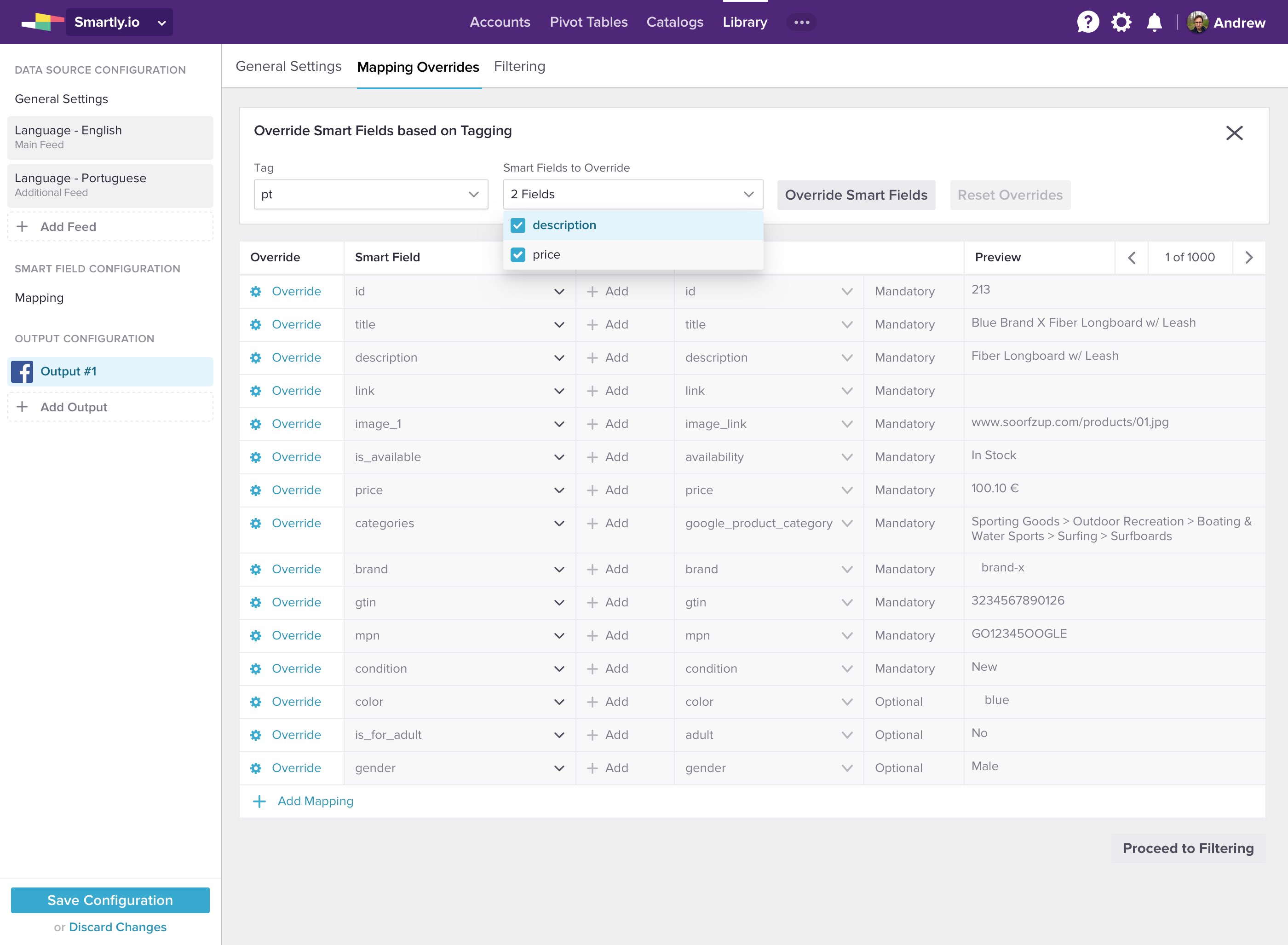
After users setup their Ouput they will be presented with another mapping stage which we named Mapping Overrides.
This allows the user to keep the mappings and rules he applied during the Smart Field Configuration stage intact and to edit values for this specific Output only.
At this point the user can also choose to override all same named fields from the Main Feed with those from an Additional Feed as long as they have been properly tagged.
This allows the user to keep the mappings and rules he applied during the Smart Field Configuration stage intact and to edit values for this specific Output only.
At this point the user can also choose to override all same named fields from the Main Feed with those from an Additional Feed as long as they have been properly tagged.
Output Cfg
Filtering
Filtering
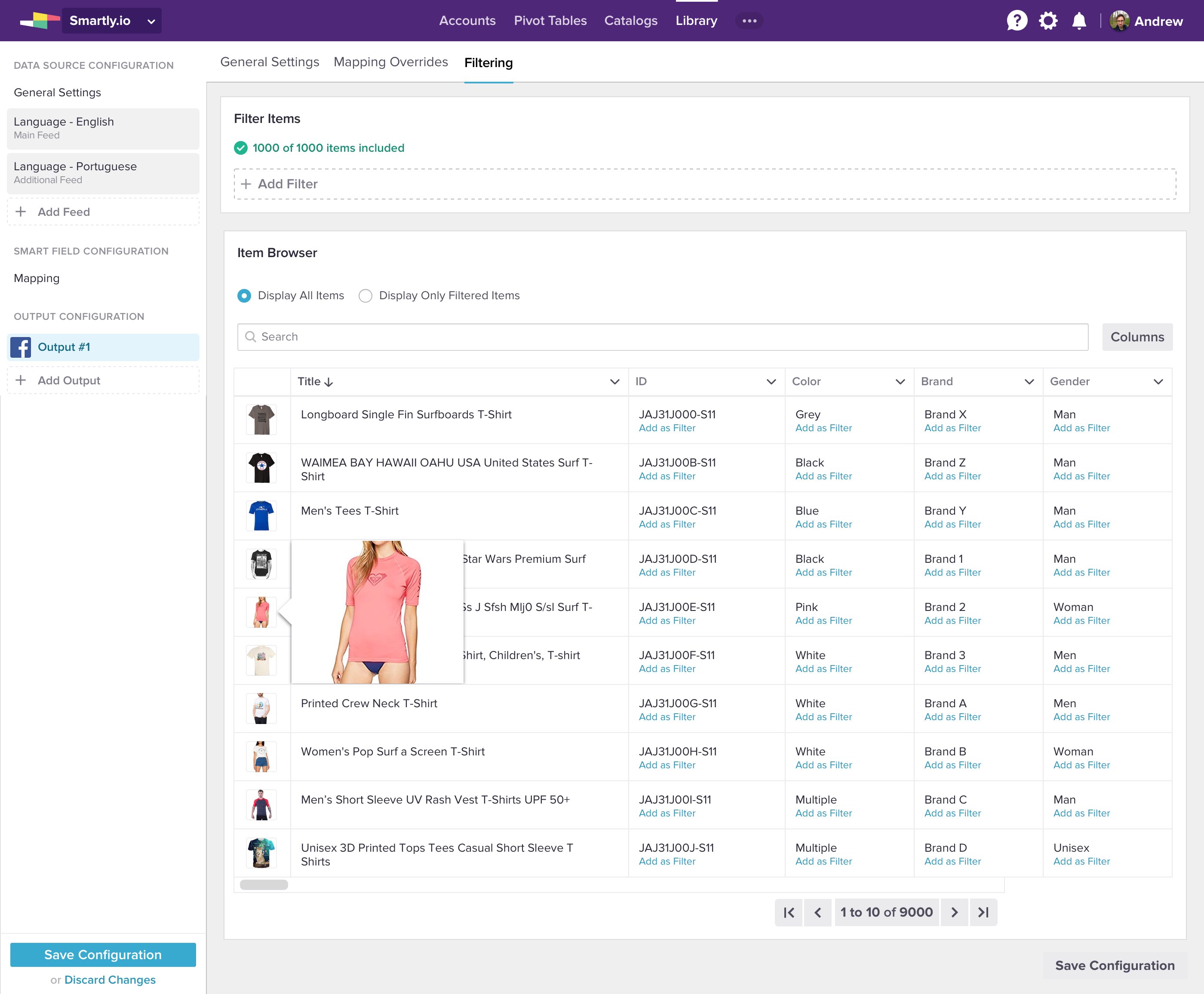
The last Output Configuration stage allows you to Filter a subset of items present on your feed so that you don't have to push products you're not interested in onward to your campaign.
You can create your own filtering rules or use the Item Browser to graphically explore the global list of items and to quickly add items that share a common property, for e.g. all items that have a specific color, to the filtered items list.
You can create your own filtering rules or use the Item Browser to graphically explore the global list of items and to quickly add items that share a common property, for e.g. all items that have a specific color, to the filtered items list.
User Testing
During the design process the interactive prototype was regularly tested with users and their feedback was taken under consideration during subsequent design iterations.
2. Ad Studies
Testing Suite
Project Overview
Running successful Facebook ad campaigns takes quite a bit of trial and error in order to get right and in order to test different parameters and boost the ROI of campaigns Split and Lift tests are absolutely essential. The workflow
to launch and run Ad Studies within Smartly is far from optimal so we wanted to empower the user with a powerful dashboard through which he could schedule Ad Studies, follow their progress and analyse their results.
Designs
We had already gathered extensive feedback from our customers about what kind of visualizations they would like in order to monitor their Ad Studies so we could quickly start the design process after a few ideation sessions. We decided
to have a kanban board visualization and a timeline interface which could also work together in a mixed panel interface.
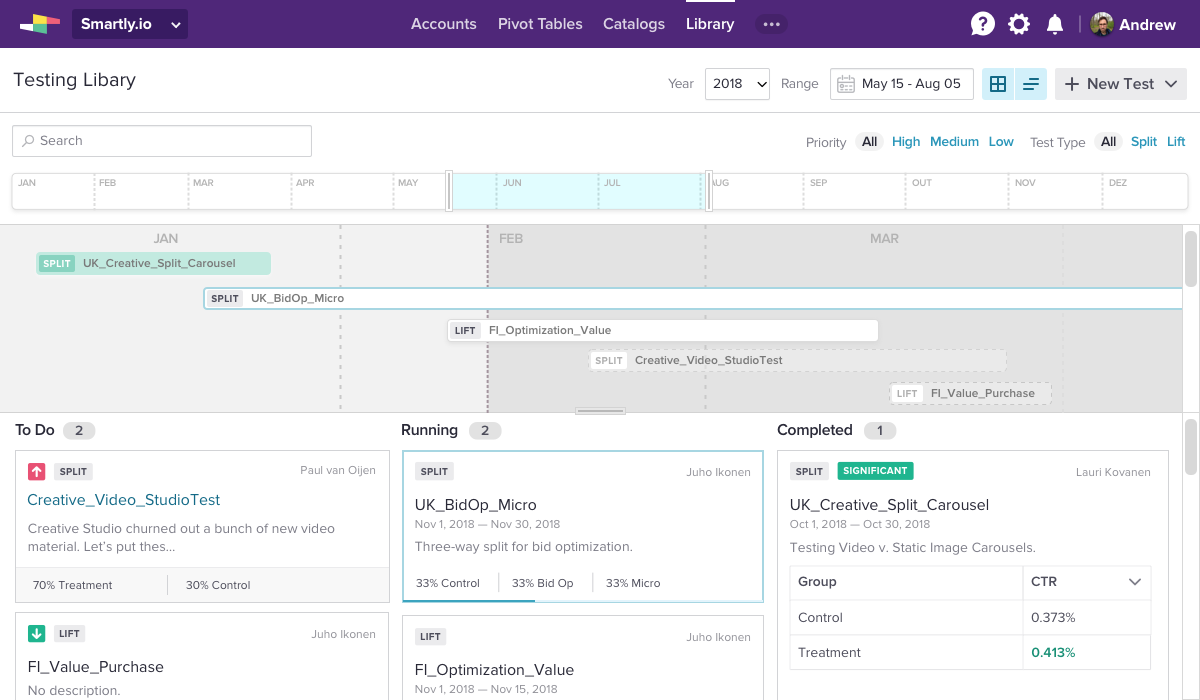
Kanban View
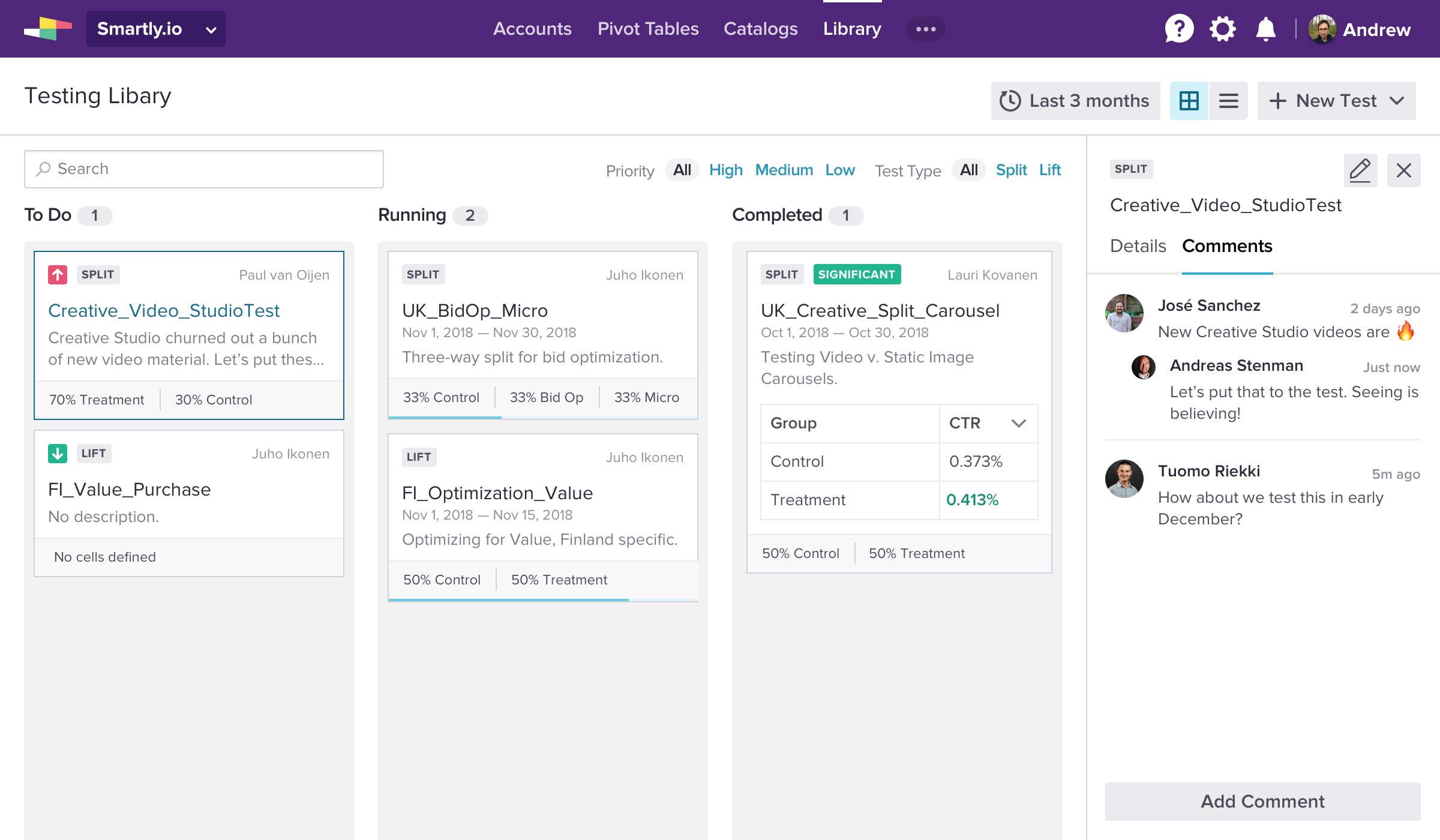
The Kanban View is especially useful to plan tests to run in the future that can then be added to the "To Do" column.
The remaining columns quickly allow you to browse through ongoing tests as well as to review the results of the completed ones.
The commenting feature allows for large teams to give their feedback on the scheduled tests before these take place.
The remaining columns quickly allow you to browse through ongoing tests as well as to review the results of the completed ones.
The commenting feature allows for large teams to give their feedback on the scheduled tests before these take place.
Timeline View
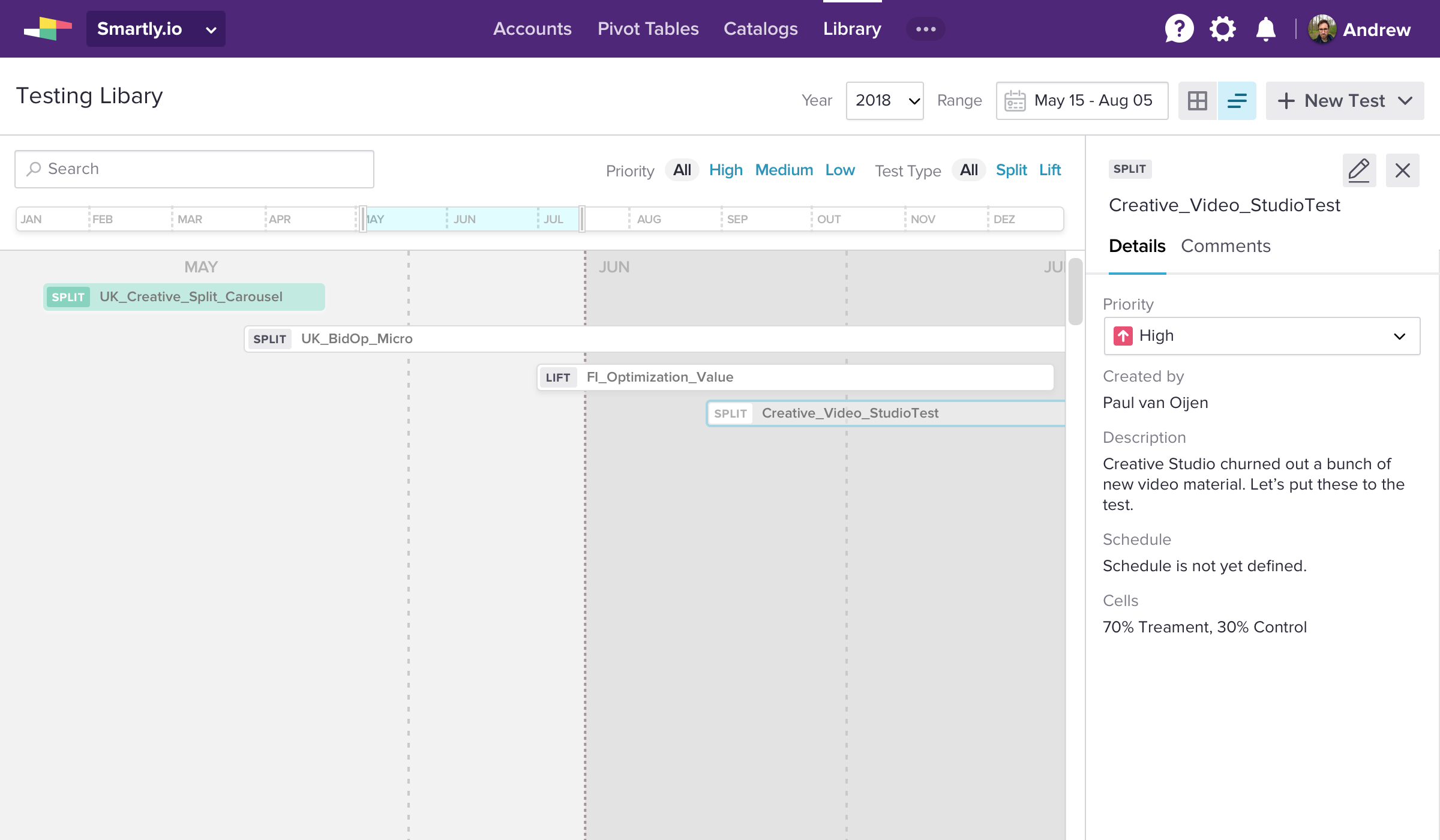
The Timeline View allows users to see at a glance what's the load of schedules during specific dates and to quickly distribute the testing workload.
This ensures that the customers' revenue through ads is not affected and that test results can be quickly acted on.
This ensures that the customers' revenue through ads is not affected and that test results can be quickly acted on.
Mixed View
The Mixed View combines the above screens as smaller customers will typically have less ad studies running simultaneously and the timeline will have little items that don't justify reserving the whole viewport to display them.